
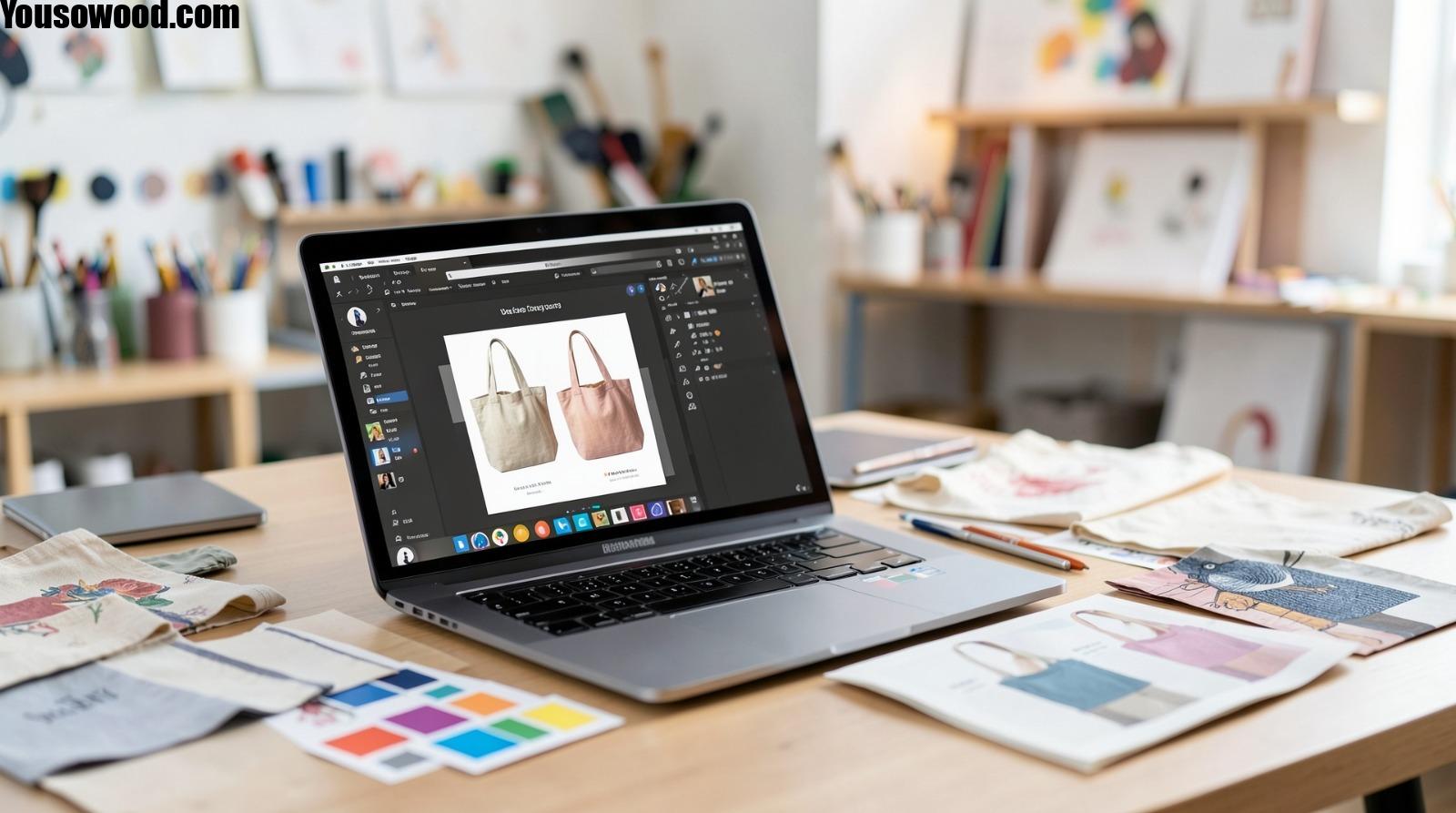
Custom tote bags have become a practical extension of influencer branding. They function as merchandise, event giveaways, and everyday promotional items. Unlike digital content, physical products must account for scale, fabric limitations, and print placement.
Tote bag design tools now combine layout editing, mockup previews, and print ordering into unified platforms. This integration reduces the need for technical design training. Instead of managing complex file setups manually, users can rely on preset dimensions and production-ready exports.
What differentiates tools in this category is how they handle printable zones, seam allowances, color contrast on fabric, and resolution settings. A methodical workflow prevents common production issues such as cropped text, muted colors, or misaligned graphics.
Many creators begin with template-based canvases before customizing typography and artwork. The emphasis is clarity and brand alignment rather than visual complexity.
Step-by-Step How-To Guide for Using Custom Tote Bags Design Tool
Define Tote Dimensions and Print Area
Goal
Establish correct canvas size and safe print zones before designing.
How to do it
- Choose tote dimensions (commonly 15×16 inches or similar).
- Confirm whether printing will be single-sided or double-sided.
- Activate bleed and margin guides.
- Lock canvas dimensions before adding artwork.
- Review seam and handle placement zones.
What to watch for
- Placing text too close to the bottom seam.
- Confusing total bag size with printable area.
- Resizing artwork after layout begins.
Tool notes
The Adobe Express tote bag maker includes preset tote dimensions and visible boundary guides, which simplify early-stage setup and reduce margin errors.
Establish a Clear Brand Message
Goal
Ensure the tote communicates one focused idea.
How to do it
- Select one dominant phrase, logo, or visual.
- Limit supporting elements to maintain readability.
- Increase spacing around the primary subject.
- Test layout at reduced zoom levels.
- Keep composition centered unless intentionally offset.
What to watch for
- Overcrowded graphics.
- Small typography that becomes unreadable at a distance.
- Multiple competing focal points.
Tool notes
Grid overlays within integrated platforms help maintain alignment consistency during layout adjustments.
Adjust Artwork for Fabric Printing
Goal
Prepare visuals for textile reproduction.
How to do it
- Use high-resolution files at 300 DPI.
- Favor vector graphics for logos and line art.
- Avoid thin strokes that may break during printing.
- Expand backgrounds fully if using full-bleed prints.
- Preview artwork at actual print scale.
What to watch for
- Faded details on canvas fabric.
- Pixelation from low-resolution images.
- Inconsistent scaling.
Tool notes
Vector refinement tools such as Vectornator can help clean up graphics before importing them into a tote layout tool.
Refine Color for Textile Surfaces
Goal
Maintain contrast and clarity after printing on canvas.
How to do it
- Use high-contrast combinations.
- Avoid very light tones on natural canvas.
- Limit palette complexity.
- Review how colors appear against the tote’s base fabric color.
- Test grayscale readability.
What to watch for
- Muted ink results.
- Insufficient contrast.
- Overly subtle gradients.
Tool notes
Color planning tools like Coolors can help refine balanced palettes before applying them to fabric-based designs.
Use Mockup Previews for Context
Goal
Understand how the tote will appear when carried.
How to do it
- Activate built-in mockup previews.
- View the design on simulated models or flat layouts.
- Rotate preview angles if available.
- Check alignment relative to handles.
- Confirm balance from a distance perspective.
What to watch for
- Design hidden by fold lines.
- Misalignment between front and back layouts.
- Overly small visual elements.
Tool notes
Integrated mockup systems reduce the need for separate rendering platforms during review.
Finalize Typography and Alignment
Goal
Ensure structural consistency before export.
How to do it
- Align elements using center and grid tools.
- Adjust letter spacing for improved readability.
- Confirm font licensing for merchandise use.
- Outline fonts when exporting vector files.
- Double-check spelling.
What to watch for
- Text drifting into seam areas.
- Inconsistent margins.
- Unembedded fonts in exported files.
Tool notes
Open-license font libraries such as The League of Movable Type can provide print-safe typefaces.
Export for Production
Goal
Generate a production-ready file.
How to do it
- Confirm final dimensions and bleed.
- Export at 300 DPI resolution.
- Use PNG or PDF depending on printer requirements.
- Reopen the exported file for clarity verification.
- Save an editable master version separately.
What to watch for
- Automatic compression reduces quality.
- Missing bleed margins.
- Incorrect scaling.
Tool notes
Encrypted storage platforms like Proton Drive can help manage final files securely.
Coordinate Distribution and Campaign Planning
Goal
Align physical product delivery with promotional timelines.
How to do it
- Confirm production turnaround time.
- Verify shipping details and quantity.
- Archive design files for future drops.
- Document print specifications.
- Track order confirmation and delivery.
What to watch for
- Underestimating production lead times.
- Incorrect bag size selection.
- Last-minute design changes.
Tool notes
Email campaign platforms such as MailerLite can complement tote launches by scheduling announcements and tracking engagement metrics.
Common Workflow Variations
Minimal Logo Tote
Focus on bold typography and generous spacing to reinforce brand clarity.
Illustration-Centered Tote
Use simplified vector art and increase contrast for fabric durability.
Quote-Based Tote
Keep text large and centered to maintain readability at distance.
Limited-Edition Drop
Use mockup previews early to validate alignment before final production.
Before You Start Checklist
- Confirm tote dimensions
- Decide single or double-sided print
- Gather high-resolution artwork
- Choose licensed fonts
- Identify fabric color
- Estimate production quantity
- Confirm timeline
- Review printer specifications
Pre-Export / Pre-Order Checklist
- Canvas size verified
- Safe margins respected
- Resolution set to 300 DPI
- Fonts embedded or outlined
- Contrast reviewed
- Mockup preview examined
- Export reopened and checked
- Order quantity confirmed
Common Issues and Fixes
Blurry Artwork
Replace low-resolution images with higher-quality originals before exporting.
Text Too Close to Seam
Increase margins and recheck boundary guides.
Muted Printed Colors
Boost contrast slightly and avoid very light tones.
Design Appears Off-Center
Use alignment grids to rebalance layout.
Incorrect File Format
Confirm printer requirements before final export.
Bag Size Mismatch
Verify selected dimensions match intended use.
FAQs
Is a template necessary?
Templates simplify alignment and reduce setup errors, especially for beginners.
What resolution should tote designs use?
300 DPI is standard for textile printing clarity.
Should designs extend to the edge?
Full-bleed designs require artwork to extend beyond trim lines when supported.
Are mockup previews accurate representations?
They simulate layout and placement but may not reflect exact fabric texture.
Can the design be resized later?
Resizing after layout may affect clarity and alignment, so it is best avoided.